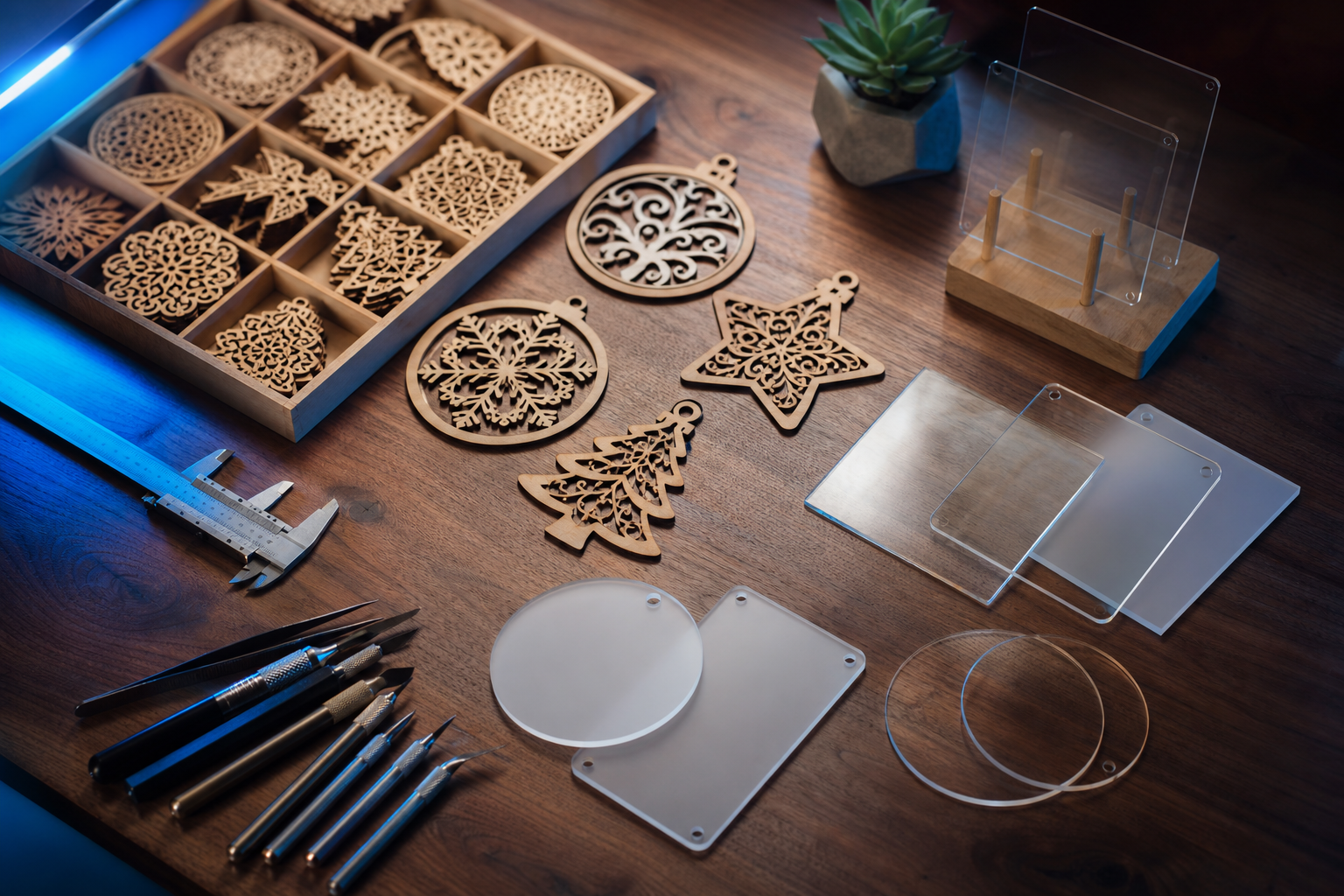
Laser cutting is one of the fastest ways to turn a digital design into a real object. With the right file, you can make coasters, signs, boxes, ornaments, tags, wall decor, organizers, cake toppers, and gifts without drawing every shape from scratch.
That is why laser cut SVG files are so useful for Glowforge users, laser cutter owners, and small craft businesses. A ready-made file can save hours of measuring, testing, and redrawing — especially when the design already includes clean cut lines, layered pieces, and common file formats.
This guide explains what to look for in laser cut files, which beginner-friendly project types are worth trying first, and where to find laser cut and Glowforge-style SVG resources.
Affiliate disclosure: This page may contain affiliate links. If you buy through these links, we may earn a commission at no extra cost to you.
Why ready-made laser cut files save time
Laser cutting rewards precision. A small design mistake can waste material, create loose joints, burn thin details, or make a project harder to assemble. Ready-made laser files help reduce that friction because much of the design work is already done.
Good laser cut files can help you:
- start projects faster;
- avoid designing from a blank canvas;
- test new product ideas;
- create gifts and decor quickly;
- build small-batch craft inventory;
- learn how different cuts and layers work;
- produce more consistent results.
For beginners, downloadable laser cut files are also a good learning tool. By studying how a working file is structured, you can understand how tabs, slots, layers, score lines, engrave areas, and cut paths are organized.
What to check before downloading a laser cut SVG file
Before using any file, review the product details carefully.
1. File formats
Many laser files include more than one format. Common formats include:
- SVG — widely used and easy to edit;
- DXF — often used with CAD and laser software;
- PDF — useful for previewing or importing;
- AI — Adobe Illustrator file;
- EPS — vector format supported by many design tools;
- CDR — CorelDRAW file for some workflows.
If you use Glowforge, LightBurn, xTool Creative Space, Illustrator, Inkscape, or another laser workflow, check which formats your software supports before buying or downloading.
2. Machine compatibility
Do not assume every SVG is ready for every laser cutter. Some files are created specifically for Glowforge, while others may need adjustments for your machine, material thickness, or software.
Look for product descriptions that mention:
- Glowforge;
- LightBurn;
- laser cutting;
- engraving;
- scoring;
- tested file formats;
- material thickness;
- assembly instructions.
3. Material thickness
Boxes, stands, slots, layered signs, and interlocking pieces often depend on material thickness. A file designed for 3 mm wood may not fit correctly with thicker or thinner material.
Before cutting, check whether the design mentions a material thickness or kerf adjustment. If it does not, test on scrap material first.
4. Commercial-use license
If you want to sell finished laser-cut products, check the license. Some files allow personal use only, while others allow commercial use of finished physical items. The rules may differ for selling the digital file itself, which is usually restricted.
Beginner-friendly laser cut project types
Coasters
Coasters are one of the easiest laser projects to start with. They are small, practical, and usually do not require complex assembly.
Good coaster file ideas:
- engraved quote coasters;
- geometric patterns;
- floral designs;
- monogram coasters;
- seasonal sets;
- wedding or housewarming gifts.
Coasters are also useful for testing engraving settings, line detail, and wood finishes.
Boxes
Laser cut boxes are popular because they feel impressive but can still be beginner-friendly if the file is designed well. Boxes may use tabs, slots, hinges, or layered panels.
Try simple boxes first:
- small gift boxes;
- star boxes;
- jewelry boxes;
- storage boxes;
- favor boxes;
- recipe card boxes.
Before cutting the final version, test a small tab/slot section to make sure your material thickness works.
Signs
Signs are excellent for home decor, gifts, nursery decor, weddings, holidays, and small business products. Many sign files combine a background layer with cut letters or decorative overlays.
Popular sign ideas:
- family name signs;
- welcome signs;
- nursery name signs;
- kitchen signs;
- craft room signs;
- seasonal door signs.
For signs, readability matters. Thin script fonts can look beautiful, but they may be fragile when cut too small.
Ornaments
Ornaments are great for seasonal batches. They are small, quick to cut, and easy to personalize.
Ideas include:
- Christmas ornaments;
- baby’s first Christmas designs;
- pet ornaments;
- teacher gifts;
- wedding keepsakes;
- memorial ornaments;
- name tags.
Seasonal ornaments can work well on Pinterest if prepared 60–90 days before the holiday.
Stands and holders
Laser cut stands and holders are practical and useful for small business sellers.
Examples:
- phone stands;
- earring display stands;
- sign holders;
- menu stands;
- acrylic display bases;
- place card holders;
- tablet stands.
These designs often require accurate slots, so material thickness and test cuts are especially important.
Wall decor
Laser cut wall decor can be simple or complex. It may include layered mandalas, quote signs, floral frames, nursery shapes, maps, or geometric art.
Good wall decor files should have clean shapes and enough structural strength that thin pieces do not break during handling.
SVG vs DXF vs PDF: which format should you use?
| Format | Best for | Notes |
|---|---|---|
| SVG | general vector editing and many laser workflows | flexible and widely used |
| DXF | CAD-style workflows and some laser software | useful for precise line files |
| previewing/importing simple vector layouts | check whether vectors remain editable | |
| AI | Adobe Illustrator users | good for editing if you use Illustrator |
| EPS | older vector workflows | compatibility varies |
For many crafters, SVG is the easiest starting point. But for laser cutting, the best format depends on your machine and software.
Recommended Creative Fabrica laser cut resources
Creative Fabrica has laser cut, Glowforge, and SVG file resources for a wide range of craft projects. For this MVP page, use category/tag links first, then replace them with affiliate tracking links before publishing publicly.
| Resource | Best for | Link |
|---|---|---|
| Glowforge Files | Glowforge-style project discovery | Browse Glowforge files |
| Laser Cutting hub | broader laser cutting resources | Explore laser cutting files |
| Star Box Laser Cut Files | example of a specific box project | View star box laser file |
Important: before publishing publicly, these links now use your Creative Fabrica referral URL and verify product-level file formats and license terms.
Tips before cutting a new file
Make a small test cut
Before cutting a full project, test a small part of the design on scrap material. This is especially important for slots, tabs, hinges, thin script text, and layered pieces.
Check cut, score, and engrave lines
Laser files may include different line colors or layers for cutting, scoring, and engraving. Make sure your software recognizes them correctly before sending the job to the machine.
Watch thin details
Very thin lines can burn, break, or become fragile. If a design includes script fonts, tiny leaves, lace-like details, or thin borders, scale and material choice matter.
Confirm the finished size
Some files import at unexpected sizes depending on software. Always check the dimensions before cutting.
Keep assembly instructions
If the file includes instructions, save them with the project. Boxes, stands, and layered designs may be confusing if you only keep the SVG.
Simple first laser project workflow
Use this workflow for a beginner-friendly test project:
- Choose a simple coaster, tag, or small sign file.
- Confirm file formats and license.
- Open the SVG/DXF in your laser software.
- Check the project size.
- Identify cut, score, and engrave layers.
- Run a small test cut on scrap material.
- Adjust settings if needed.
- Cut the final design.
- Sand, paint, stain, or assemble if required.
- Photograph the finished project for future reference.
Pinterest-friendly laser cut image ideas
Laser cut content works well on Pinterest because it shows a clear transformation: digital file → cut pieces → finished object.
Try these pin concepts:
- “Laser Cut SVG Files for Glowforge” — wooden laser cut pieces, a coaster, a small box, and a clear title.
- “Easy Glowforge Project File Ideas” — ornaments, engraved coasters, and small decorative signs on a warm craft table.
- “Laser Cut Files for Beginner Projects” — SVG-style line previews beside finished wooden crafts.
Use original photos, generated mockups, or properly licensed visuals. Do not copy Creative Fabrica preview images unless you have permission.
FAQ
Can SVG files be used with Glowforge?
Yes, SVG files are commonly used with Glowforge, but you should still check the file and project details. Some files are designed specifically for laser cutting, while others may need editing before they cut correctly.
What file formats are best for laser cutting?
SVG and DXF are common choices. SVG is easy for many crafters to edit, while DXF is often useful for CAD-style workflows. The best format depends on your laser software and machine.
Are laser cut files beginner-friendly?
Some are. Simple coasters, tags, ornaments, and flat signs are usually more beginner-friendly than boxes, hinges, layered mandalas, or slot-based stands. Start with simple files and test on scrap material.
Can Cricut SVGs be used for laser cutting?
Sometimes, but not always. A Cricut SVG may not be designed with laser cutting, material thickness, kerf, or engraving layers in mind. Check the file carefully before using it with a laser cutter.
What should I check before buying a laser cut file?
Check file formats, machine/software compatibility, material thickness notes, assembly instructions, license terms, finished size, and whether the design includes cut/score/engrave layers.
Final recommendation
If you are new to laser cutting, start with simple laser cut SVG files like coasters, tags, small signs, or ornaments before moving into boxes and interlocking designs. Choose files that clearly list formats, compatibility, material notes, and license terms.
Next step: browse laser cut and Glowforge SVG files on Creative Fabrica, choose one simple project, and run a scrap-material test cut before using your final material.
---
Ready to explore resources?
Use this guide to choose a resource type, then browse Creative Fabrica with the affiliate link below.
Browse Creative Fabrica

